 MySimple Apps
How to use MySimple To-Do
Everything you need to know to get the most out of your lists.
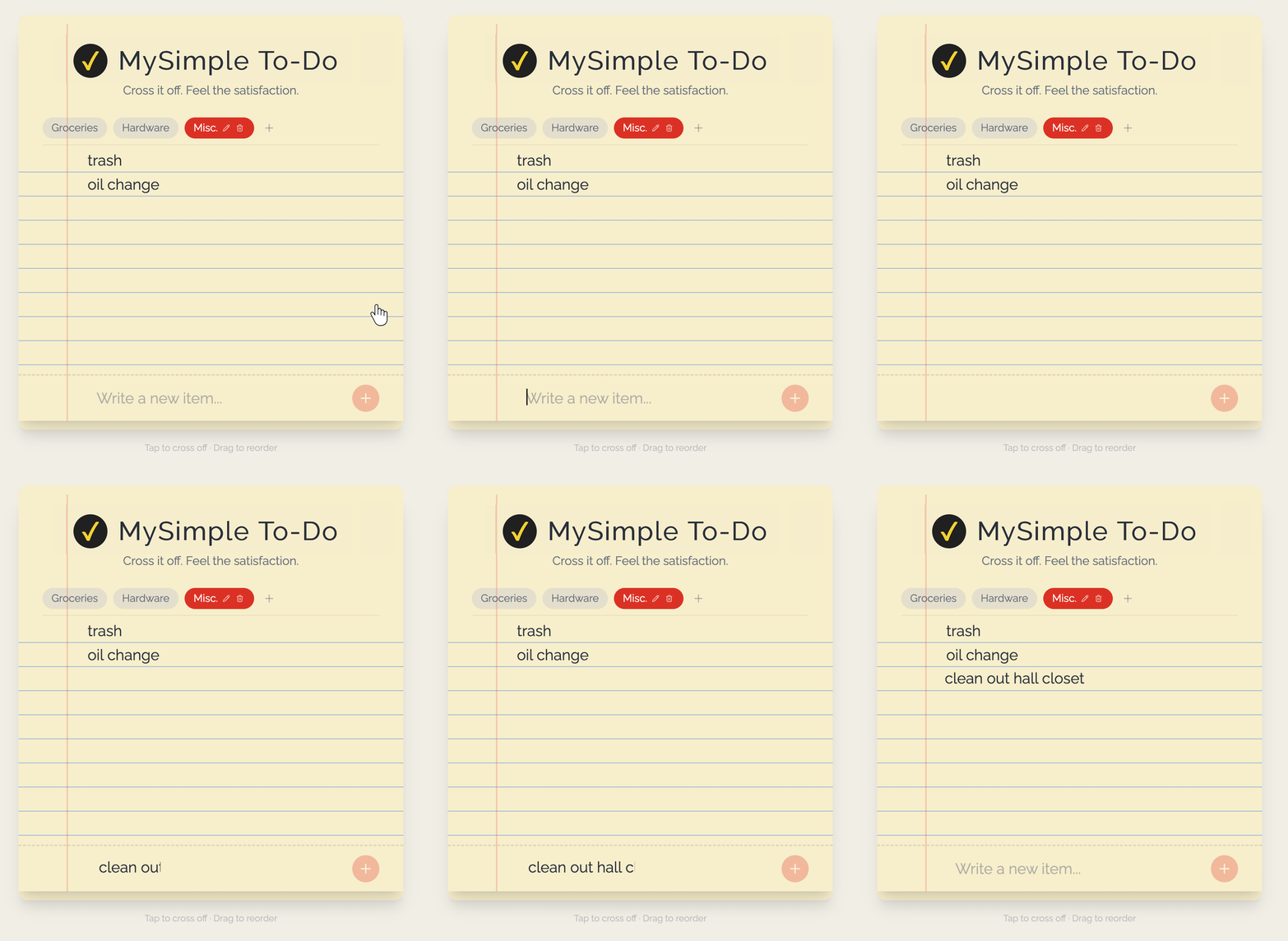
Add items
Type in the box at the bottom of the pad and press Enter (or tap the + button) to add a new item.
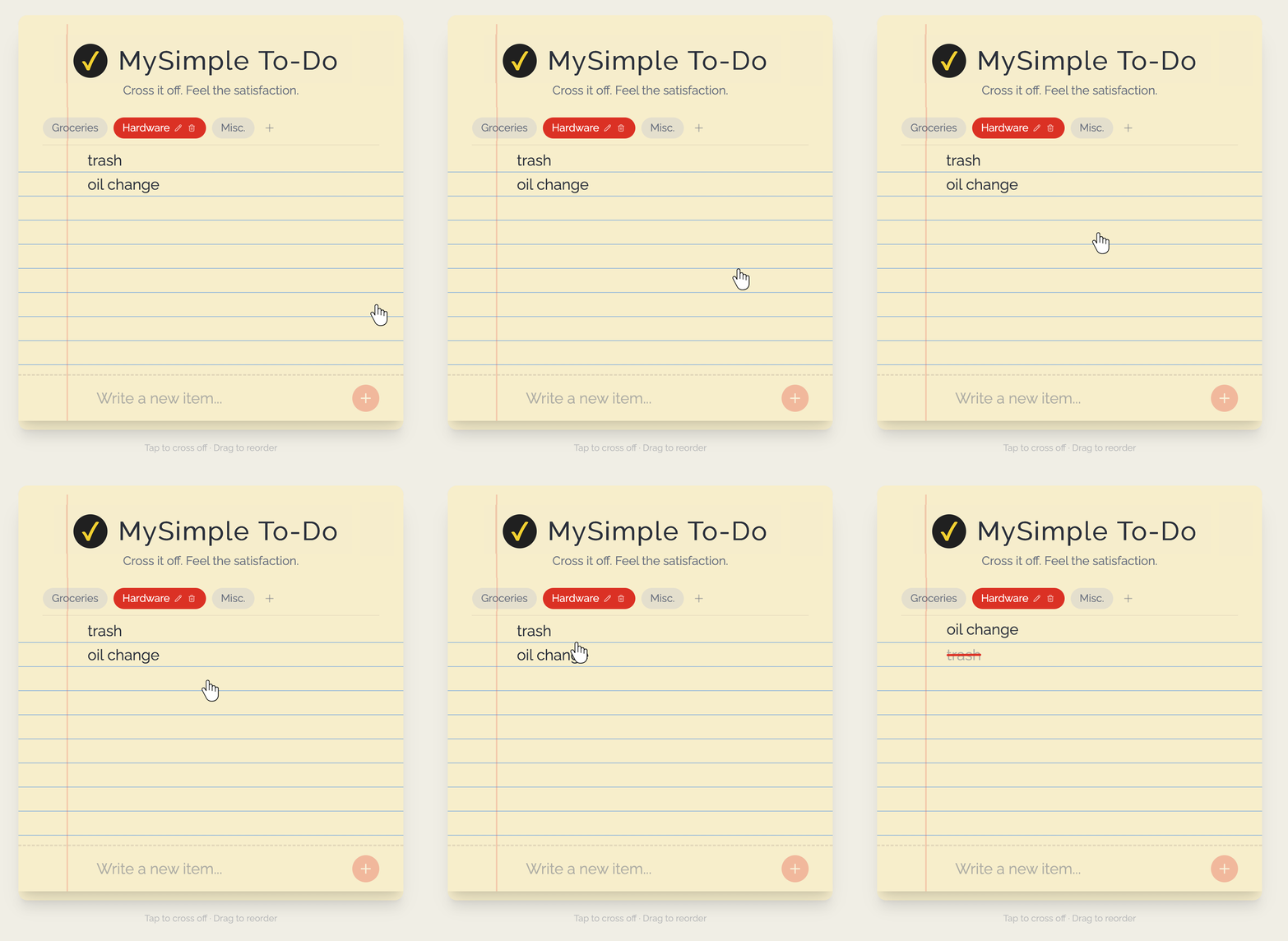
Tap or click to cross off item
Tap any item to strike it through with a satisfying red line. Tap again to uncheck it.
Delete an item
Hover over (or lightly tap on mobile) an item to reveal the trash icon on the right. Tap it to permanently remove that item from your list.
Drag to reorder
Hold and drag the grip handle on the left of any item to rearrange your list however you like.
Edit an item
Hover over (or long-press on mobile) an item to reveal the pencil icon. Tap it to rename the item inline.
Multiple lists
Use the tabs at the top of the pad to switch between lists, create new ones, rename them, or delete them.
Adjust font size
Tap the A / A+ / A++ button in the top-right corner of the pad to cycle through three text sizes. Your preference is saved automatically.
Works on mobile & desktop
MySimple To-Do is designed for both phones and computers. On mobile, the screen stays on while you're using the app — no more dimming mid-task!
Your data is always saved
Everything syncs to your account automatically. Pick up exactly where you left off on any device.
Send Feedback
We read and reply to all messages